5.2 Control Multi-Storage Chamber: Navigator software
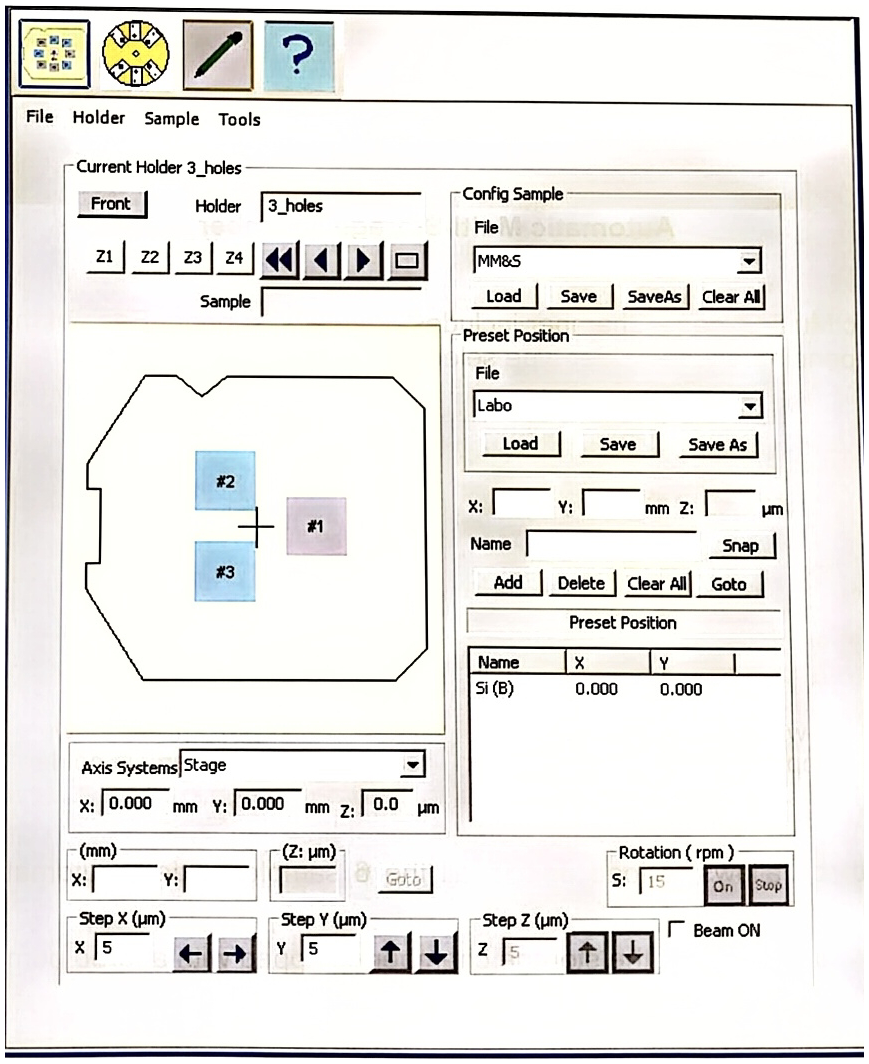
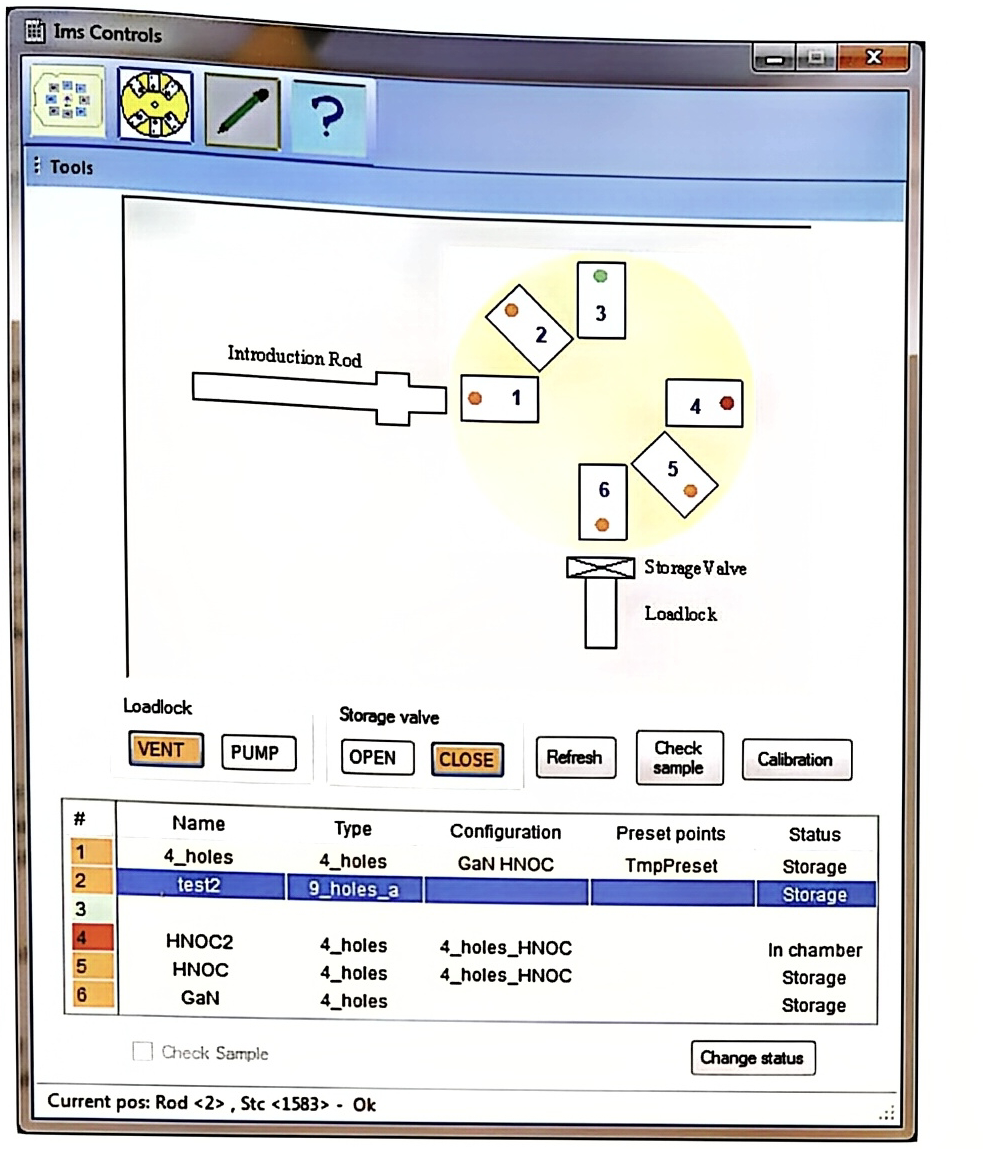
Starting from the main ‘Navigator’ program, the icon  allows switching from the sample holder to the storage chamber panel as shown in below.
5.2.1 Tools
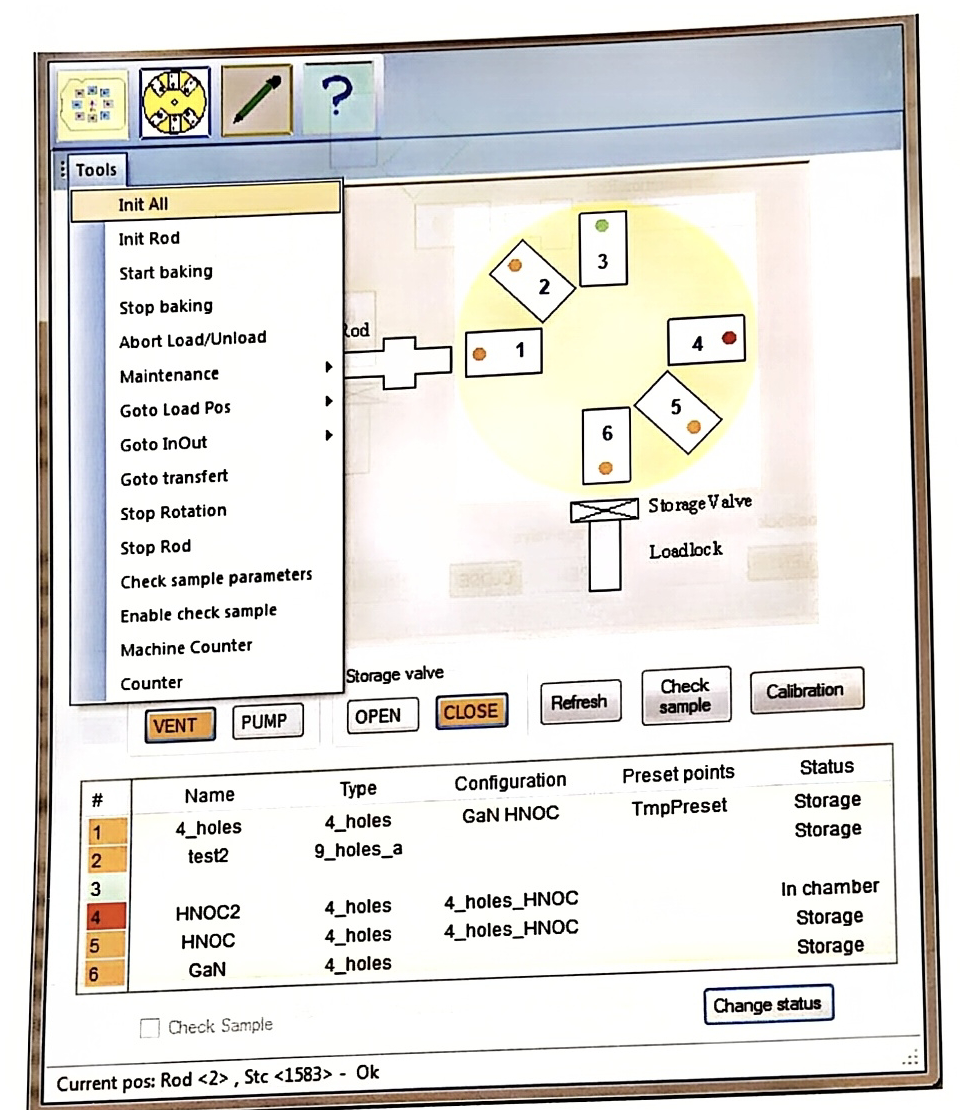
Section titled “5.2.1 Tools”The tool menu includes several commands (Refer to the figure below):
- Init All: the init all function initializes all storage chamber parameters as the sample holder rotation tower and the rode position.
♦ Init Rod: Initialize only the rode position.
- Start baking: To turn on the sample baking system.
- Stop baking: To stop the sample holder baking system.
♦ Abort Load/Unload: To abort Load/Unload command
♦ Maintenance: Use for maintenance purpose
- Go to load position, move to InOut, Goto transfer, Stop Rotation, Stop Rod: all these functions can be used for troubleshooting.
- Counter: this function memorizes the number of transfers from the Storage Chamber to the Analyse Sample Chamber.
This tools menu is normally used for maintenance or repair purpose, it is not used for normal utilization by customer. That is why certain functions are not available in normal mode.
5.2.2 Multi-Storage Chamber Synoptic
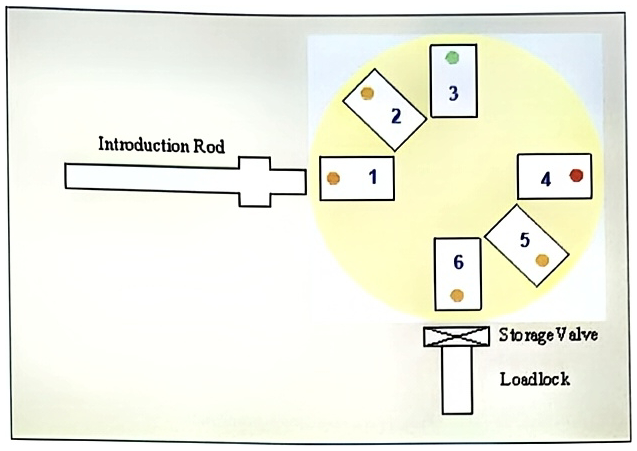
Section titled “5.2.2 Multi-Storage Chamber Synoptic”The sample storage chamber synoptic displays the 6 sample holder positions. The green, yellow, and red dots indicate different sample holder status.
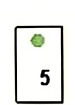 The green label indicates a free space in the storage chamber.
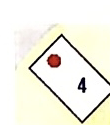 The red label indicates that the sample holder is in the analytical chamber.
The orange label indicates that a sample holder is present in storage.
5.2.3 Sample holder status
Section titled “5.2.3 Sample holder status”| (1) | (2) | (3) | (4) | (5) | (6) |
| # | Name | Type | Configuration | Preset points | Status |
| 1 | 4_holes | 4_holes | GaN HNOC | TmpPreset | Storage |
| 2 | test2 | 9_holes_a | Storage | ||
| 3 | |||||
| 4 | HNOC2 | 4_holes | 4_holes_HNOC | In chamber | |
| 5 | HNOC | 4_holes | 4_holes_HNOC | Storage | |
| 6 | GaN | 4_holes | Storage |
The next panel display the status of the 6 holders using the same colors as describe previously. — Sample holder panel
The 6 columns include all the information about the sample holder.
(1) The first column # displays the holder number and the color status.
(2) The Name column gives the name of the sample holder if it was previously defined in the Holder configuration edition.
(3) The Type column displays the holder type as it was specified during the In process.
(4) The Configuration column indicates the name of the holder and sample description as it was configured in the Holder configuration edition.
(5) The Preset points column displays the name of the preset position file.
(6) The Status panel column displays the position of sample holders. This status is consistent with the color status of the first column #.