7.2 Starting Cesium source from tuning software
The Tuning Cs Source control panels allow the operator to set the Cs Source High Voltage, Ionizer current and Reservoir current. The Cs Source High Voltage (or Accel HV) is chosen by the user according to analytical requirements. Both the ionizer and the reservoir currents are depending on the kind of Source (Refer to The CAMECA ion source user’s guide).
In the Ion source user’s guide, it is explained that for a given source accel HV, the reservoir current must be increased along the source life for keeping the same spot density. This increase is not achieved automatically. Practically, the user is advised to increase the reservoir current with the keyboard thumbwheels.
Starting the Cs source, stopping it or switching the accelerating voltage involves automatic process under computer control.
7.2.1 The Cs source Start Process
Section titled “7.2.1 The Cs source Start Process”The Cs source Start Process is activated in 2 cases:
When the operator clicks START in the ‘Cs source Start/Stop’ panel.
When a new ISF is loaded, if the new ISF accel HV is not the current one.
Any Cs source Start Process can be defined by the set of 3 initial parameters and 3 final parameters.
| Initial Accel HV | Final Accel HV |
| Initial ionizer current | Final ionizer current |
| Initial reservoir current | Final reservoir current |
The initial parameters are the instrument current parameters. The final parameters may be the last saved parameters in Set-Up, or the parameters saved in ISF file to load.
The normal current value for a recent Cs source with an extraction voltage of 10kV is about:
Ionizer current = 1,70 mA
Reservoir current = 0,10 mA
After a certain period of using the source, it will be necessary to slightly increase the ionizer and reservoir current to keep the same debit current of the source, as the quantity of cesium carbonate will decrease with the time.
7.2.2 The Cs source Start/Stop panel
Section titled “7.2.2 The Cs source Start/Stop panel”Clicking the icon  in the top of the Tuning menu bar opens the property box displayed below. Select the Cs tab.
Analogic/digital If Analogic, the source parameters are displayed in the box in physical units (Volts or mA).
ON Reservoir displays the reservoir current as it was at the last Stop Source.
ON Ionizer displays the ionizer current as it was at the last Stop Source.
Stop button for activating the Cs source Stop process.
Cs source Starting Mode
Heating Source & Working panel (displayed on the left-hand side) for selecting the Cs source Starting Mode:
❖ Source Heating & Working:
○ Cs source chamber valve is opened (if closed).
○ Cs source moves to the Work Position inside of the primary column (if not yet done).
○ Cs source heating is started (Accel HV, Ionizer, Reservoir)
❖ Source Heating only:
○ Cs source heating is started (Accel HV, Ionizer, Reservoir) at Home position without displacement of Cs source and without changing the valves status.
Cs source differed stopping Box
Section titled “Cs source differed stopping Box”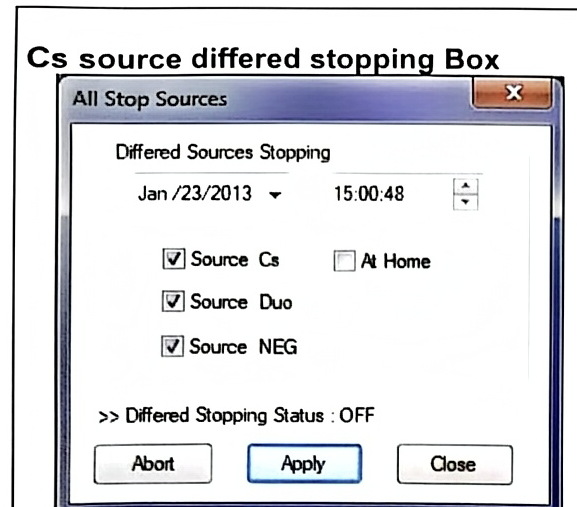
@>Stop button opens All Stop Sources panel displayed on the left-hand side. This panel allows to program the stopping the sources.
Source selection: Cs/Duo/NEG. Cs source position: At Home/At Work. Stopping date & time. then, Apply and Close.
Cs source differed starting Box
Section titled “Cs source differed starting Box”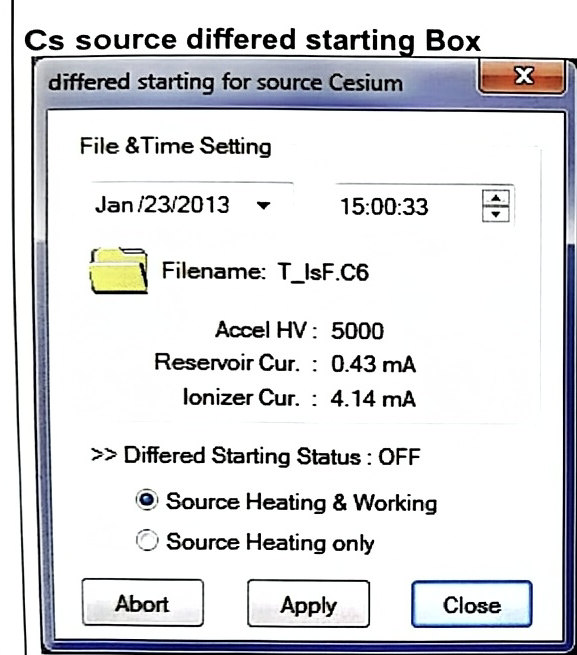
@>Start button opens Differed starting for source Cesium panel displayed on the left hand side. This panel allows to program the starting of the sources.
ISF file selection: set Cs source Accel HV, Reservoir current and Ionizer current to start. Selection of the Cs source starting Mode. Source Heating & Working. Source Heating only. (see above for the details) then, Apply and Close.
7.2.3 The Calib Cs Position panel
Section titled “7.2.3 The Calib Cs Position panel”Click Setup at the top of the Tuning menu bar.
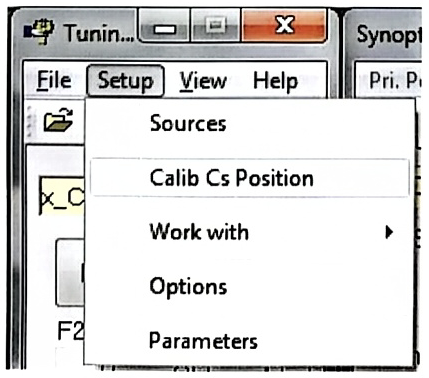
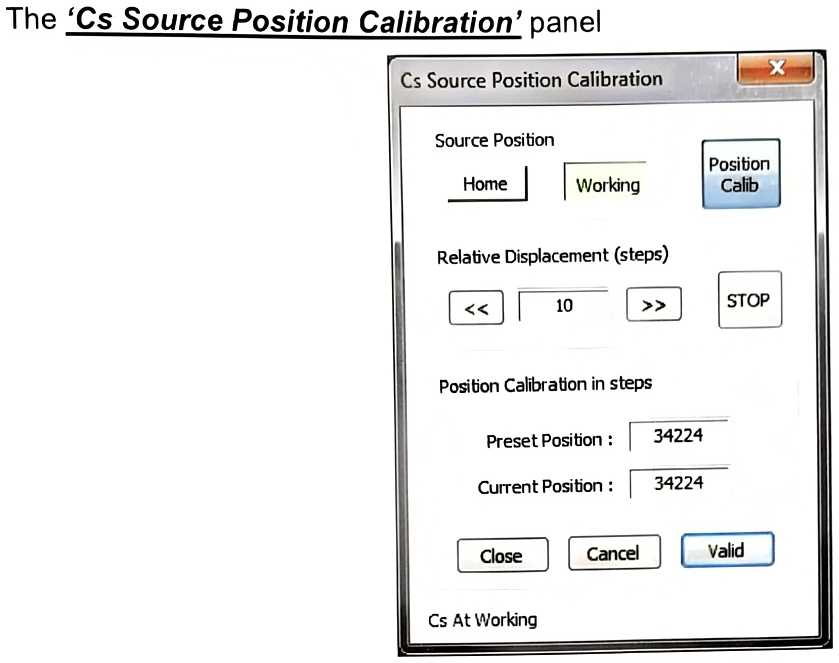
Source Position the Cs source can be loaded and unloaded by clicking Home or Working buttons.
- Home: Cs source moves into the Cs source chamber.
- Working: Cs source enters the primary column.
- Position Calib allows to move manually Cs source position if it is necessary. By clicking this button, following Relative Displacement area turns to be editable.
- Relative Displacement shifts Cs source position along X direction by taking the assigned steps. Once the source is well centered in the primary column, it is recommended to validate this new position using Valid button.
- Position Calibration in steps displays the lastly validated source position and the current position in step unit.
- Close closes the Cs Source Position Calibration box.
- Cancel cancels the modification of the Cs source position.
- Valid validates new Cs source position.