6.1 The Tuning Panels Description
6.1.1 The main menu
Section titled “6.1.1 The main menu”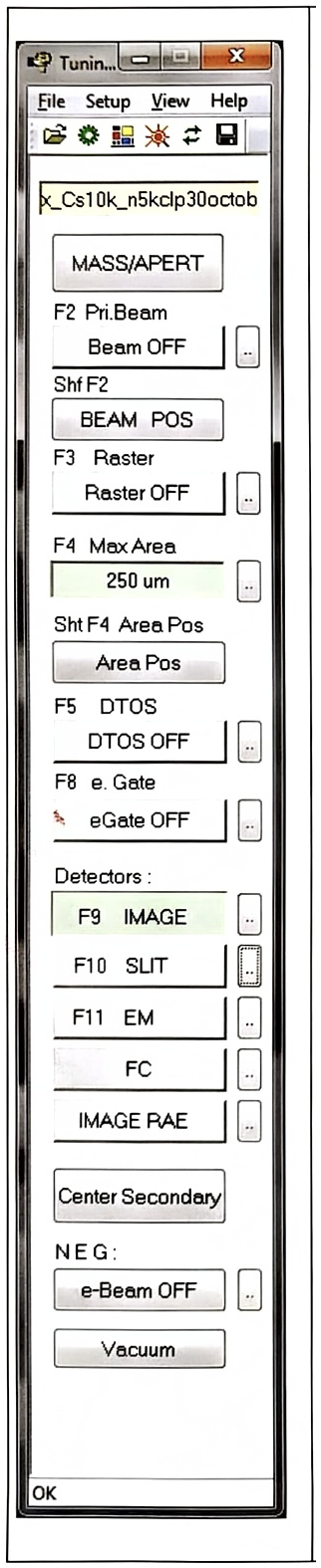
- File displays the selection menu open/save/save as/Change linearity/Print/Print Setup.
- Setup displays the selection menu Sources/Calib Cs Position/Work with /options /parameters.
- View displays the menu Tool bar/Status. See below.
 opens the ISF loading box.
 saves the current instrument configuration with the displayed filename.
 opens the 'Synoptic' panel.
 opens the 'OIP' panel.
 opens the 'Start/Stop Cs source' panel or the 'Start/Stop Duo' panel.
 refreshes the link between the workstation and the MicroProcessor.
- x_Cs10k_n5kclp30octob displays the current ISF label.
- MASS/APERT opens the 'Mass and aperture' box.
- Beam OFF displays the current Primary beam preset label. Clicking the button switches the primary beam ON/OFF (equivalent to the dedicated keyboard button). Opens the 'Primary beam preset' box.
- BEAM POS opens the 'Beam Position' box.
- Raster OFF displays the current Raster size preset label. Clicking the button switches the Raster ON/OFF. Opens the 'Raster preset' box.
- 250 um displays the current Max Area preset label. Opens the 'Max Area preset' box.
- Area Pos opens the 'Area Position' box.
- DTOS OFF/ON switches the dynamic transfer DT ON/OFF. Opens the 'DTOS preset' box.
- eGate OFF switching the eGate ON/OFF. If eGate=ON, the field displays the eGate ratio (%). Opens the 'eGate preset' box.
- Image/Slit/EM/FC/Image RAE selects the detector preset. Both the Image and Slit fields also display the given zoom preset. Opens the 'Detector preset' box.
- Center Secondary opens the 'Center Secondary' box.
- N.E.G e-Beam OFF switches the NEG ON/OFF.
Select the required ISF and click Open for loading the ISF. The field Files of type allows to sort the ISF according to their suffix C6/D6 which corresponds to the ion source location (Cs/Duo).
Loading an ISF also loads the instrument setting contained in the Setup file.
6.1.2 The synoptic panel
Section titled “6.1.2 The synoptic panel”Clicking the icon in the top of the Tuning menu bar  opens the synoptic panel displayed below.
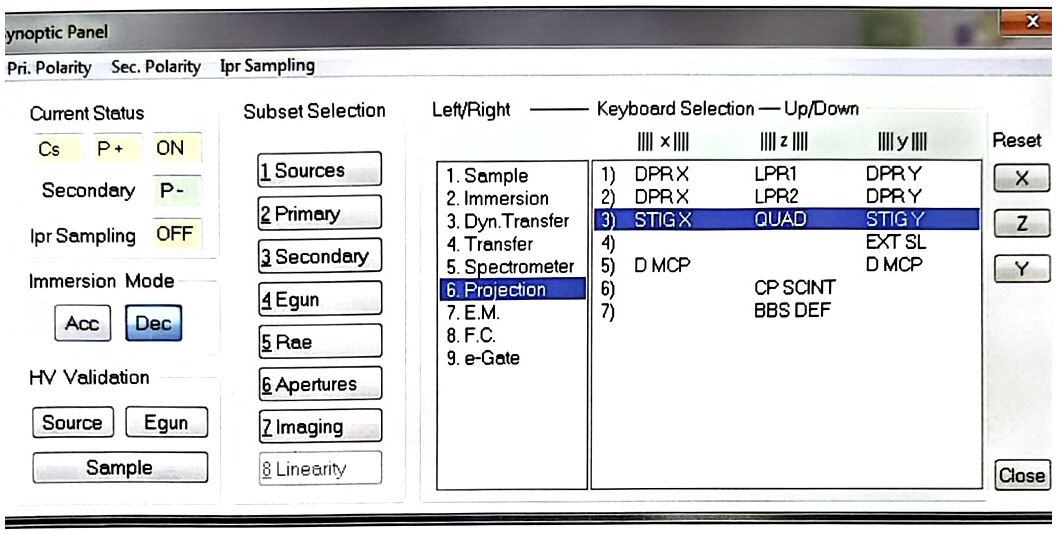
- Polarities allow to switch the primary polarity and the secondary polarity.
- Ipr Sampling shows the status of the primary ion beam sampling ON/OFF.
- Current Status displays the current source status.
- Acc/Dec IMM allows to switch the immersion lens mode from accel to decel.
- Valid Source HV opens the Valid Source HV Box. (See below)
- Valid Sample HV opens the Valid Sample HV Box. (See below)
- Valid Egun HV opens the Valid Egun HV Box. (See below)
- Reset X, Y, Z allow to reset all parameters on a selected axis to zero.
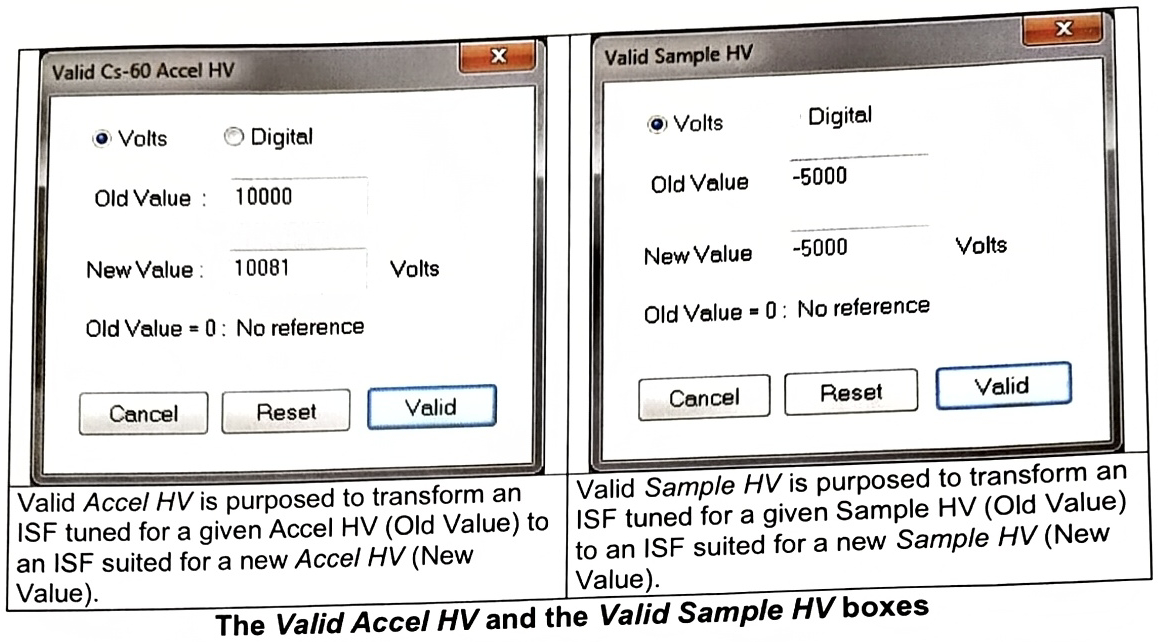
Valid Accel HV is purposed to transform an ISF tuned for a given Accel HV (Old Value) to an ISF suited for a new Accel HV (New Value).
Valid Sample HV is purposed to transform an ISF tuned for a given Sample HV (Old Value) to an ISF suited for a new Sample HV (New Value).